
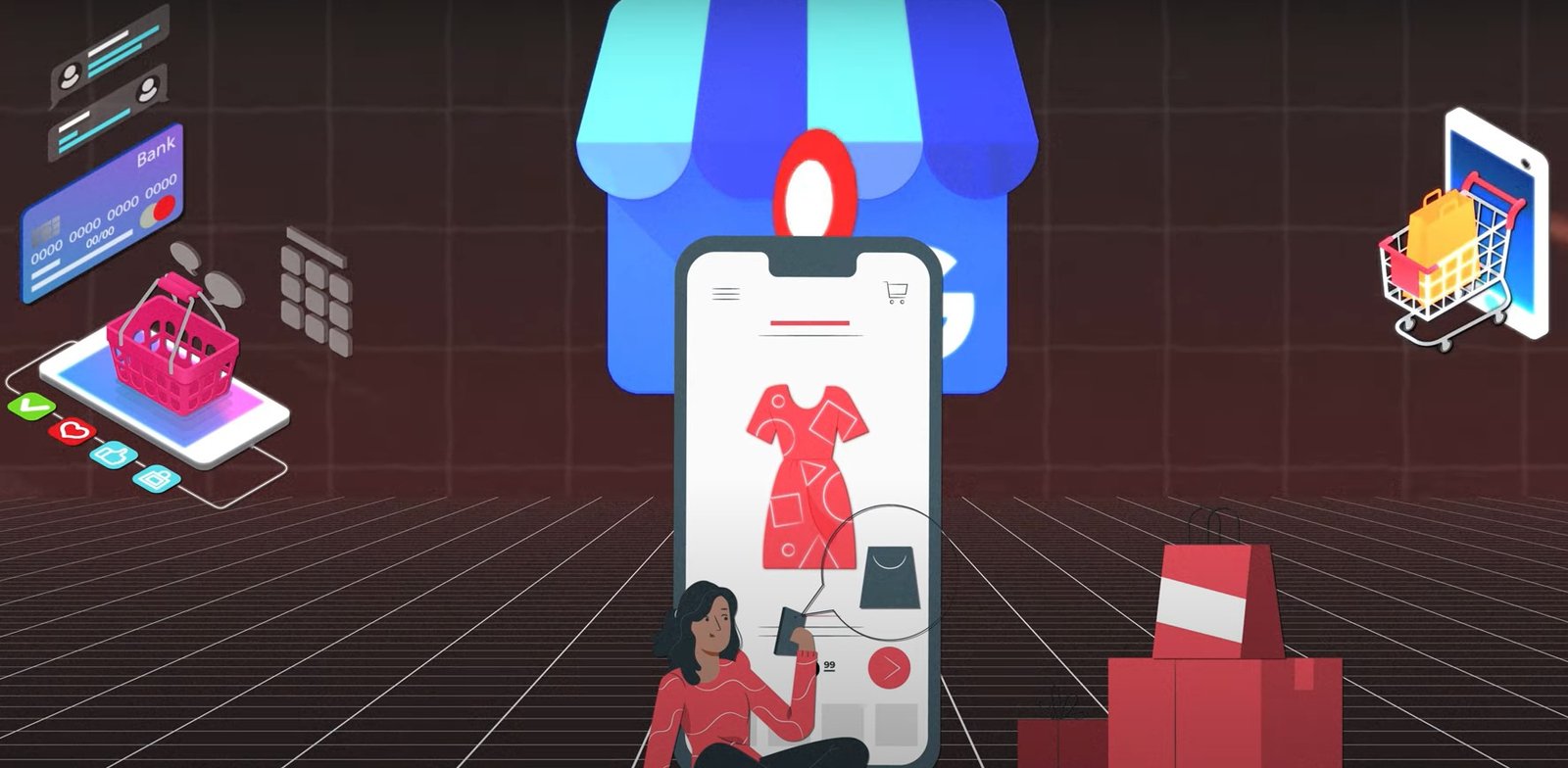
You’re looking to get your Google Business Profile (GBP) set up for 2025! It’s a fantastic way to boost your local visibility on Google Search and Maps. Here’s a step-by-step tutorial to guide you through the process:
Step 1: Go to Google Business Profile Manager
- Open your web browser and navigate to https://www.google.com/business/.
- Click on the button that says “Manage now” or “Sign in”.
Step 2: Sign In to Your Google Account
- You’ll need a Google account to create and manage your Business Profile.
- If you have a Google account (like a Gmail address): Enter your email and password and click “Next”.
- If you don’t have a Google account: Click on “Create account” and follow the prompts to set one up.
Step 3: Find or Add Your Business
- If your business already exists on Google Maps: Start typing your business name and address in the search bar. A list of potential matches will appear.
- Select your business if it’s listed. You might be asked to verify ownership.
- If you can’t find your business: Click on “Add your business to Google”.
Step 4: Enter Your Business Name
- Type in the exact name of your business as it appears in the real world (e.g., on your storefront or website).
- Click “Next”.
Step 5: Choose Your Business Category
- Start typing a word or two that best describes your primary business. Google will suggest categories.
- Select the most accurate category from the dropdown menu. This is crucial for helping Google understand what your business offers.
- You may have the option to add additional categories later, but focus on the primary one for now.
- Click “Next”.
Step 6: Indicate If You Have a Physical Location
- If you have a physical store, office, or service area that customers can visit: Select “Yes”. You’ll then be prompted to enter your business address.
- If you don’t have a physical location that customers visit (e.g., you’re a service-area business or online-only): Select “No”. You’ll be asked to specify your service areas later.
- Click “Next”.
Step 7: Enter Your Business Address (If Applicable)
- Carefully enter your full and accurate street address, including apartment, suite, or floor number if applicable.
- Double-check for any typos!
- You’ll be asked if you also serve customers outside this location. If yes, you can specify your service areas (cities, postal codes, or regions) in the next step.
- Click “Next”.
Step 8: Specify Your Service Areas (If Applicable)
- If you selected “No” in Step 6 or indicated that you serve customers outside your physical location, you’ll now define your service areas.
- You can list specific cities, postal codes, or a radius around your business.
- Be as accurate as possible to target the right customers.
- Click “Next”.
Step 9: Add Your Contact Information
- Enter your business phone number. Make sure it’s accurate and the one you want customers to use.
- Enter your website URL if you have one. This is highly recommended.
- Click “Next”.
Step 10: Stay in the Loop (Optional)
- Google might ask if you want to receive updates and recommendations for your business on Google. You can choose “Yes” or “No”.
- Click “Next”.
Step 11: Verify Your Business
- This is a crucial step to confirm that you are the rightful owner of the business. Google offers several verification methods, and the available options may vary depending on your business and location. Common methods include:
- Phone: You’ll receive an automated call or SMS with a verification code.
- Email: Google will send a verification email to your associated Google account.
- Postcard by mail: Google will mail a postcard to your business address with a unique verification code. This can take several days or weeks.
- Video verification: You might be asked to record a short video showcasing your business.
- Choose a verification method and follow the on-screen instructions carefully.
- Important: Your Business Profile will not be fully visible to the public until you complete the verification process.
Step 12: Enhance Your Profile
Once you’ve started the verification process (or completed it), you’ll have access to your Google Business Profile dashboard. Now it’s time to make it shine!
- Add Business Hours: Specify your operating days and hours accurately. You can also set special hours for holidays or events.
- Write a Business Description: Craft a compelling and informative description of your business, highlighting your products, services, and unique selling points. Use relevant keywords that customers might search for.
- Add Photos and Videos: High-quality visuals are essential! Upload photos of your storefront, interior, products, team, and anything that showcases your business. Videos can also be very engaging.
- Add Attributes: Select relevant attributes that describe your business (e.g., “Wheelchair accessible,” “Offers takeout,” “Free Wi-Fi”).
- Add Products or Services: If applicable, list your products or services with descriptions and pricing (if you choose).
- Answer Questions: Monitor the “Questions & answers” section and promptly answer any questions from potential customers.
- Enable Messaging: Allow customers to contact you directly through your Business Profile.
- Encourage Reviews: Positive reviews significantly impact your local ranking. Encourage satisfied customers to leave reviews on your profile.
Step 13: Keep Your Profile Updated
- Regularly update your Business Profile with new information, photos, offers, and events.
- Respond to reviews (both positive and negative) professionally and promptly.
- Use Google Posts to share updates, promotions, and news about your business.
Key Considerations for 2025:
- Focus on High-Quality Visuals: With increasingly visual search results, ensure your photos and videos are professional and appealing.
- Leverage Google Posts: Use Google Posts regularly to keep your profile fresh and engage with potential customers.
- Prioritize Customer Interaction: Respond promptly and thoughtfully to reviews and messages.
- Keep Information Accurate: Ensure all your business details (name, address, phone number, website, hours) are consistently accurate across all online platforms.
- Explore New Features: Google frequently introduces new features for Business Profiles. Stay informed and utilize them to your advantage.
By following these steps and keeping your profile updated, you’ll be well on your way to leveraging the power of Google Business Profile to attract more local customers in 2025! Good luck!