
Creating a website using Canva for free is a straightforward process, especially if you’re looking for a simple online presence like a portfolio, a digital business card, or a landing page. Here’s how you can do it in 2025:
Steps to Make a Free Website with Canva:
- Sign Up or Log In to Canva:
- Go to the Canva website (https://www.canva.com/) and sign up for a free account if you don’t already have one. You can sign up with your Google, Facebook, or email account.
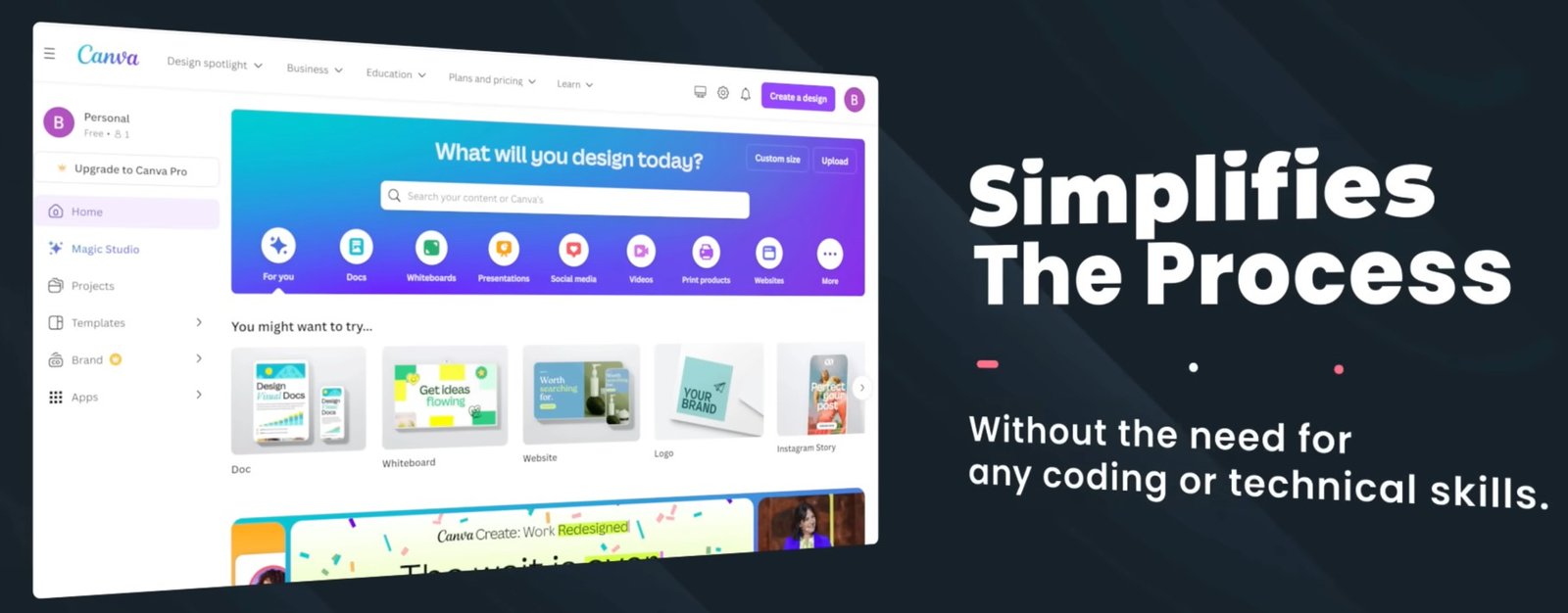
- Find the Website Builder:
- Once you’re logged in, look for the “Website” option. You can usually find it by:
- Typing “Website” into the search bar on the Canva homepage.
- Clicking on the “Create a design” button in the top right corner and then selecting “Website”.
- Navigating to the “Templates” section and searching for “Websites” under the “Business” category.
- Once you’re logged in, look for the “Website” option. You can usually find it by:
- Choose a Free Website Template:
- Canva offers a variety of pre-designed website templates. Browse through the options and select one that suits your needs and style.
- Tip: Look for templates that don’t have a “Pro” label if you want to stick to the free plan. You can filter templates to show only the free ones.
- Customize Your Template:
- Canva’s website builder uses a drag-and-drop interface, making it easy to customize every element of the template:
- Text: Click on any text box to edit the content, font, size, color, and alignment.
- Images: Replace the default images with your own uploads (click “Uploads” on the left sidebar) or choose from Canva’s free stock photo library (“Elements” > “Photos”).
- Colors: Change the color scheme to match your brand or preference. Click on elements and use the color picker in the toolbar. Canva also offers a color palette generator.
- Elements: Add various elements like shapes, lines, icons, and illustrations from the “Elements” tab. Look for free elements to avoid watermarks.
- Layout: Rearrange sections and elements by dragging and dropping them. You can also combine sections from different templates.
- Buttons: Add call-to-action buttons from the “Elements” tab (search for “CTA” or “button”) and link them to external URLs or other sections of your one-page site.
- Canva’s website builder uses a drag-and-drop interface, making it easy to customize every element of the template:
- Add Your Content:
- Populate the template with your own information, including:
- About Me/Us: Introduce yourself or your business.
- Portfolio/Services: Showcase your work or the services you offer.
- Contact Information: Include your email address, social media links, or a contact form (you might need to embed this from a third-party service as Canva doesn’t have native form tools in the free plan).
- Populate the template with your own information, including:
- Create Internal Navigation (for One-Page Websites):
- Since free Canva websites are typically one-page layouts, you’ll need to create internal links to different sections to mimic navigation.
- Add Notes: On each section (which Canva treats as a “page” in the editor), click “Add note” from the side menu and give it a page title (e.g., “Home,” “About,” “Portfolio,” “Contact”).
- Create Navigation Menu: When you preview your site, ensure the “Include navigation menu” option is checked. Canva will automatically create a menu with links to these titled sections.
- Link Text or Buttons: You can also manually link text or buttons to specific sections by selecting the element, clicking the “Link” icon, and choosing the relevant page title from the dropdown.
- Preview Your Website:
- Before publishing, click the “Preview” button in the top right corner to see how your website looks on desktop and mobile devices.
- Ensure the “Resize on mobile” option is checked to see the responsive design.
- Make sure your navigation links are working correctly.
- Publish Your Website for Free:
- Click the “Publish” button in the top right corner.
- Choose the “Free domain” option. Canva will provide you with a URL in the format
yourusername.canva.site/yourwebsitename. You can customize theyourwebsitenamepart. - You’ll also have the option to add a short description for your site, which can help with basic SEO.
- Click “Publish website.” Your website will now be live on the Canva subdomain.
Limitations of the Free Canva Website:
- One-Page Website: The free version of Canva Websites primarily supports single-page layouts with scrolling navigation. While you can link multiple Canva websites together, it’s not a seamless multi-page experience.
- Canva Subdomain: You’ll have a Canva-branded subdomain (e.g.,
yourusername.canva.site). You cannot use a custom domain for free. - Limited SEO Features: Canva’s free website builder has very basic SEO capabilities. You can set a page title and description, but there are no advanced SEO tools or plugins. Features like adding “alt” text to images for SEO were also noted as missing in some reviews.
- No Blogging Features: Canva Websites is not designed for blogging. It lacks features like post categories, tags, and chronological content display.
- No E-commerce Functionality: You cannot directly sell products or services through a free Canva website. You would need to link out to a separate e-commerce platform.
- Limited Integrations: The free plan has limited options for embedding external widgets like advanced contact forms or marketing tools.
- Canva Branding: Your free website might include some Canva branding.
Who is a Free Canva Website Suitable For?
- Individuals needing a simple online presence like a basic portfolio or a digital business card.
- Small businesses that need a quick and easy landing page.
- Events or projects that require a temporary online information hub.
- Those who are already familiar with Canva and prefer its user-friendly interface.
If you need a more feature-rich website with multiple pages, a custom domain, blogging capabilities, or e-commerce functionality, you will likely need to consider upgrading to Canva Pro or using a dedicated website builder like WordPress.org, Wix, or Squarespace.
In conclusion, while you can definitely create a functional and visually appealing website for free using Canva, it’s essential to be aware of its limitations, especially if you have more complex needs or plan to scale your online presence significantly.