
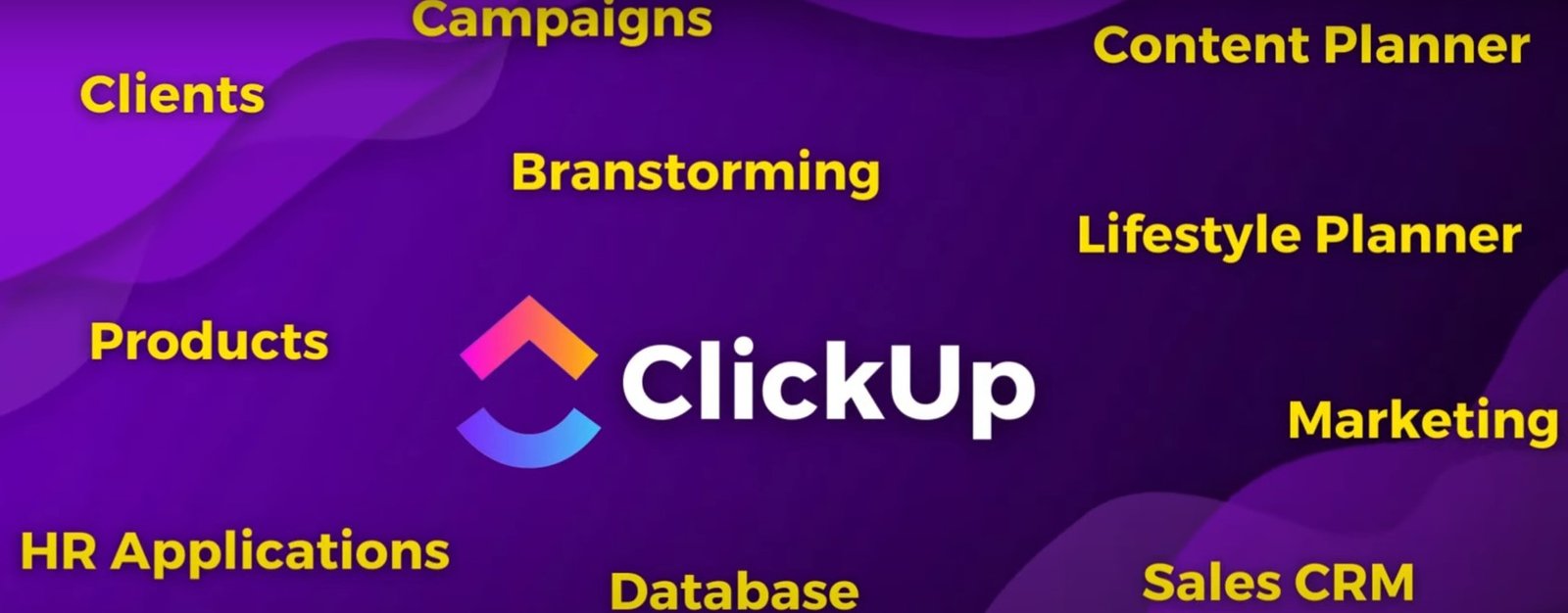
While ClickUp isn’t a dedicated CRM (Customer Relationship Management) platform like Salesforce or HubSpot, its flexibility and powerful features allow you to effectively build and manage a CRM system tailored to your specific needs. This approach can be particularly useful for teams already heavily invested in ClickUp for project management and task management.
Here’s a comprehensive guide on how to use ClickUp as a CRM:
1. Define Your Sales Pipeline Stages:
- Before setting up ClickUp, map out your sales process. What are the distinct stages a lead goes through from initial contact to becoming a customer? Examples include:
- New Lead
- Qualified Lead
- Meeting Scheduled
- Proposal Sent
- Negotiation
- Closed Won
- Closed Lost
2. Create a “CRM” Space and Folders/Lists for Stages:
- Create a Space: Designate a specific Space in ClickUp for your CRM activities. This helps keep sales-related information separate from project work. Name it something clear like “Sales CRM” or “Customer Management.”
- Create Folders or Lists for Each Stage: Within your CRM Space, create either Folders or Lists to represent the stages of your sales pipeline.
- Folders: Can be used to group related Lists (e.g., “Active Leads” Folder containing “Qualified Leads” and “Meeting Scheduled” Lists).
- Lists: Each List will represent a specific stage in your pipeline.
3. Create Custom Fields for Contact and Deal Information:
This is where you’ll store crucial data about your leads and deals. Create Custom Fields at the Space, Folder, or List level (depending on where the information is most relevant). Examples of useful Custom Fields:
- Contact Information:
- Name (Text)
- Email (Email)
- Phone Number (Phone)
- Company (Text)
- Job Title (Text)
- Source (Dropdown: Website, Referral, LinkedIn, etc.)
- Deal Information:
- Deal Value (Number or Currency)
- Estimated Close Date (Date)
- Probability (Percentage or Dropdown)
- Next Action (Text or Date)
- Assigned Sales Rep (User)
- Notes (Long Text)
- Lead Score (Number or Calculation)
- Products/Services Interested In (Tags or Multi-select)
4. Create Tasks for Individual Leads/Deals:
- Each lead or potential deal will be represented as a Task within the appropriate List (pipeline stage).
- Task Name: Use a clear and consistent naming convention (e.g., “Contact Name – Company Name”).
- Assignee: Assign the Task to the responsible sales representative.
- Due Date: Set the estimated close date or the date for the next action.
5. Utilize Views for Pipeline Management:
ClickUp’s Views are essential for visualizing and managing your sales pipeline:
- Board View: This is the most intuitive view for a sales pipeline. Each column represents a stage, and tasks (leads/deals) can be dragged and dropped between stages as they progress.
- List View: Provides a detailed list of all leads/deals with all your Custom Fields visible. You can sort and filter this view based on various criteria.
- Calendar View: Useful for visualizing deadlines for follow-ups, meetings, and estimated close dates.
- Table View: Similar to List View but offers more customization options for displaying and editing data.
- Gantt Chart View: Can be used for visualizing longer sales cycles and key milestones.
6. Automate Tasks and Notifications:
Leverage ClickUp’s Automations to streamline your CRM workflow:
- Moving Leads Between Stages: Automatically change the Status of a Task when it’s moved to a different List (e.g., when a lead is dragged to the “Qualified Leads” List, its Status changes to “Qualified”).
- Assigning Tasks: Automatically assign new leads to specific sales reps based on predefined rules (e.g., round-robin assignment or based on lead source).
- Setting Due Dates: Automatically set follow-up dates based on the current stage or a Custom Field.
- Sending Notifications: Automatically notify sales reps when a lead reaches a new stage or when a follow-up is due.
- Creating Follow-Up Tasks: Automatically create a follow-up Task when a certain stage is reached.
7. Track Communication and Activities:
- Task Comments: Use Task Comments to record all communication with the lead, meeting notes, and important updates.
- Email in ClickUp: Integrate your email with ClickUp to send and receive emails directly within the lead’s Task, keeping all communication centralized.
- Docs: Link relevant documents (proposals, contracts) to the Task.
- Activity Log: Track all actions taken on a Task.
8. Reporting and Analysis:
- Dashboards: Create Dashboards to visualize key CRM metrics:
- Number of leads in each stage
- Total deal value in each stage
- Win rate
- Average deal size
- Sales rep performance
- Lead source effectiveness
- ClickUp Reports: Utilize ClickUp’s built-in reporting features to analyze your sales data. Create custom reports based on your Custom Fields and Task history.
9. Integrate with Other Tools:
- Zapier and Make (Integromat): Connect ClickUp to other tools you use for sales and marketing (e.g., lead generation platforms, email marketing software).
- Native Integrations: Explore ClickUp’s native integrations with tools like Slack, Google Calendar, and more.
Example Workflow:
- A new lead comes in through your website form (integrated via Zapier).
- A new Task is automatically created in the “New Lead” List in ClickUp.
- An Automation assigns the Task to a sales rep and sets a follow-up due date.
- The sales rep moves the Task to the “Qualified Lead” List after initial contact. The Task Status automatically updates.
- Communication and meeting notes are recorded in the Task Comments.
- A proposal (linked as a Doc) is sent.
- The Task is moved through the pipeline stages (“Proposal Sent,” “Negotiation”).
- If the deal is won, the Task is moved to the “Closed Won” List, and the Deal Value Custom Field is updated.
- Dashboards provide a visual overview of the sales pipeline and key metrics.
Limitations of Using ClickUp as a CRM:
- Not Purpose-Built: It lacks some of the dedicated CRM features found in specialized platforms (e.g., advanced sales forecasting, complex lead scoring rules, dedicated marketing automation).
- Manual Configuration: Setting up a robust CRM in ClickUp requires significant manual configuration of Custom Fields, Views, and Automations.
- Learning Curve: While flexible, the initial setup and understanding of all the features can have a steeper learning curve compared to simpler CRMs.
When is Using ClickUp as a CRM a Good Option?
- Your team is already heavily invested in ClickUp for project and task management.
- You need a customizable CRM solution that integrates well with your existing workflows.
- Your CRM needs are relatively straightforward and can be accommodated by ClickUp’s features.
- You want to avoid the cost of a separate dedicated CRM platform.
By carefully planning your sales process and leveraging ClickUp’s powerful features, you can create a functional and effective CRM system tailored to your specific needs. Remember to continuously refine your setup as your sales process evolves.