
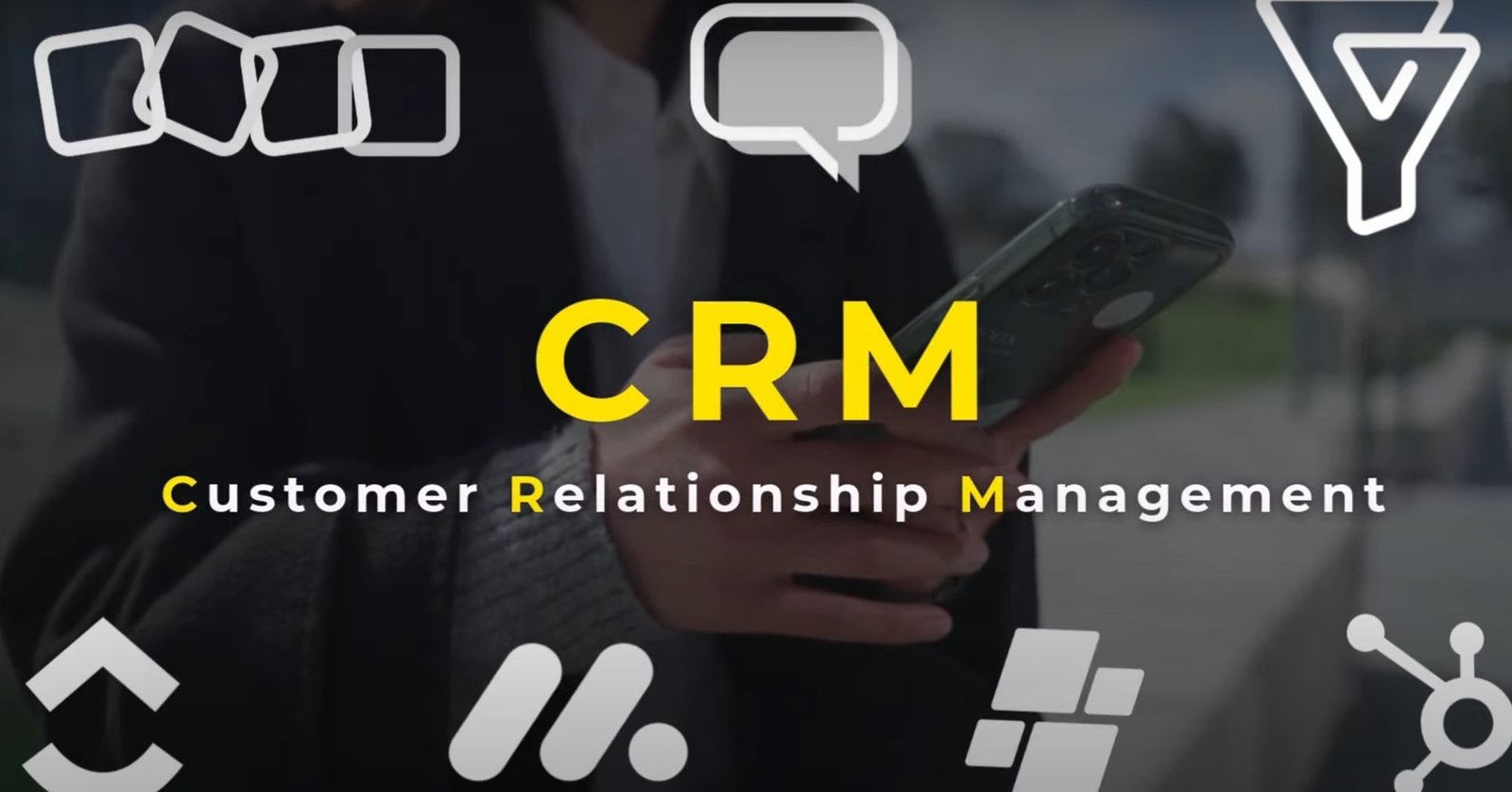
You’re looking to leverage the power of ClickUp as a Customer Relationship Management (CRM) system in 2025! While ClickUp isn’t a dedicated CRM platform like Salesforce or HubSpot, its flexibility and customization options allow you to build a robust CRM workflow tailored to your needs.
Here’s a comprehensive tutorial on how to use ClickUp as a CRM in 2025:
I. Setting Up Your ClickUp CRM Structure:
The key to using ClickUp as a CRM is to structure your Workspace, Spaces, Folders, and Lists effectively to represent your sales pipeline and customer data. Here’s a suggested structure:
- Workspace: Your main organizational hub in ClickUp.
- Space (e.g., “Sales CRM”): Dedicate a Space specifically to your CRM activities. This keeps everything related to your leads, deals, and customers in one place.
- Folders (e.g., “Leads,” “Opportunities,” “Customers”): Within the “Sales CRM” Space, create Folders to represent different stages of your customer lifecycle. You can customize these based on your specific sales process.
- Leads: Initial contacts or potential customers.
- Opportunities: Qualified leads that you are actively pursuing.
- Customers: Closed deals and current clients.
- (Optional) Lost Deals/Archived: For tracking unsuccessful opportunities.
- Lists (within Folders): Within each Folder, create Lists to further organize your records. For example:
- Leads: “New Leads,” “Contacted Leads,” “Qualified Leads.”
- Opportunities: Stages of your sales pipeline (e.g., “Discovery,” “Proposal Sent,” “Negotiation”).
- Customers: You might have one main “Active Customers” List or segment them further (e.g., by industry, account manager).
II. Customizing ClickUp for CRM Functionality:
ClickUp’s Custom Fields are crucial for storing and managing customer-related information. Here are essential Custom Fields you should create at the List or Folder level (depending on whether the information is relevant across all stages):
- Contact Information (Text/Email/Phone): First Name, Last Name, Email Address, Phone Number, Company Name, Website.
- Lead Source (Dropdown/Text): How the lead was generated (e.g., Website Form, Referral, Social Media, Cold Outreach).
- Lead Score (Number/Dropdown): A numerical or categorical value indicating the lead’s potential.
- Opportunity Stage (Dropdown): Reflects the current stage of the sales process (e.g., Discovery, Proposal Sent, Negotiation, Closed Won, Closed Lost).
- Deal Value (Number/Currency): The potential or actual value of the deal.
- Close Date (Date): The anticipated or actual date the deal will close.
- Next Action (Text): The next step to be taken with this lead/opportunity/customer.
- Next Action Date (Date): The date for the next action.
- Assigned To (User): The team member responsible for managing this record.
- Priority (Priority): The urgency or importance of the lead/opportunity.
- Notes (Long Text): A space for detailed notes and communication history.
- Tags (Tags): Use tags for categorization (e.g., industry, product interest).
- Relationship Stage (Dropdown): For Customers, track their engagement level (e.g., Active, Inactive, At-Risk).
- Last Contacted (Date): The date of the last interaction.
III. Utilizing ClickUp Features for CRM Workflow:
- Tasks as Records: Each lead, opportunity, and customer will be represented as a Task within your designated Lists.
- Views: ClickUp’s Views are essential for visualizing your CRM data in different ways:
- Board View: Visualize your sales pipeline by Opportunity Stage. Drag and drop tasks (opportunities) between stages as they progress.
- List View: Display all your Custom Fields in columns for easy data management and filtering.
- Calendar View: Track important dates like follow-up reminders, proposal deadlines, and close dates.
- Table View: Similar to List View but allows for more advanced grouping and calculations.
- Gantt Chart View: Visualize timelines for longer sales cycles or customer projects.
- Automations: Set up Automations to streamline repetitive CRM tasks:
- Automatically change the Opportunity Stage based on a Status change.
- Assign tasks to specific team members when a new lead is created.
- Set due dates for follow-up actions.
- Send email notifications for upcoming tasks or stage changes.
- Create follow-up tasks automatically when a certain date is reached.
- Forms: Use ClickUp Forms to capture new leads directly from your website or other channels. Map form responses to your ClickUp List and Custom Fields.
- Email in ClickUp: Connect your email to ClickUp to send and receive emails directly within the platform, keeping communication history tied to the relevant lead/opportunity/customer Task.
- Docs: Use ClickUp Docs to create templates for proposals, contracts, or onboarding materials that can be easily linked to customer records.
- Dashboards: Create Dashboards to get an overview of your CRM performance:
- Track the number of leads in each stage.
- Visualize your sales pipeline value.
- Monitor team activity and performance.
- Display key metrics like conversion rates and average deal size.
- Relationships: Use ClickUp Relationships to connect related Tasks across different Lists or Folders. For example, you can link a Contact Task to multiple Opportunity Tasks or a Customer Task to related Project Tasks.
- ClickUp AI: Leverage ClickUp AI (if your plan includes it) to summarize notes, generate email drafts, or extract key information from customer interactions.
IV. Building Your Sales Pipeline in ClickUp:
- Define Your Sales Stages: Determine the distinct stages of your sales process (e.g., Qualification, Demo Scheduled, Proposal Sent, Negotiation, Closed Won, Closed Lost).
- Create Statuses: In your “Opportunities” List, create Statuses that directly correspond to your sales stages. Map these statuses to the “Opportunity Stage” Custom Field for easy tracking.
- Visualize with Board View: Switch to the Board View of your “Opportunities” List. Your statuses will appear as columns, and you can drag and drop opportunity Tasks between them as they progress through your pipeline.
V. Managing Leads and Customers:
- Lead Capture: Use ClickUp Forms embedded on your website or manually create Tasks in your “Leads” List for new inquiries.
- Lead Qualification: Define criteria for qualifying leads and update the “Lead Score” and “Opportunity Stage” accordingly.
- Opportunity Management: Track all interactions, notes, and documents related to an opportunity within its Task. Use due dates and reminders for follow-ups.
- Customer Onboarding: Create a separate List or Project for customer onboarding and link it to the “Customers” List using Relationships.
- Customer Communication: Utilize Email in ClickUp or log all communication within the customer’s Task notes.
- Account Management: Assign account managers using the “Assigned To” Custom Field and track customer health using the “Relationship Stage” field.
VI. Reporting and Analysis:
- Dashboards: Create custom Dashboards with Widgets to visualize key CRM metrics. Use Number Widgets, Line Charts, Bar Charts, and Tables to display relevant data.
- Filters and Grouping: Use ClickUp’s filtering and grouping options in List and Table Views to analyze your data (e.g., filter opportunities by sales rep, group customers by industry).
- Export Data: Export your ClickUp data to CSV or other formats for more in-depth analysis in spreadsheet software.
VII. Best Practices for Using ClickUp as a CRM in 2025:
- Consistency is Key: Ensure your team consistently uses ClickUp to log all interactions and update record information.
- Regular Review and Optimization: Periodically review your ClickUp CRM setup and make adjustments as your sales process evolves.
- Team Training: Provide thorough training to your team on how to use ClickUp as a CRM effectively.
- Leverage Integrations: Explore ClickUp’s integrations with other tools you use (e.g., email marketing platforms, calendar apps) to further streamline your workflow.
- Start Simple and Iterate: Don’t try to build a perfect CRM in ClickUp overnight. Start with the essential elements and gradually add more complexity as needed.
By following these steps and leveraging ClickUp’s powerful features, you can effectively build a customized CRM system that meets the specific needs of your business in 2025. Remember to focus on creating a clear structure, utilizing Custom Fields effectively, and automating repetitive tasks to maximize efficiency.

Generate Audio Overview